
 TerraPlan
Volume zones and the takeoff
Draw foam lift, void fill, slab patch and concrete zones with a depth, see the cubic yards or cubic feet, and count everything on the page with Takeoff.
Zones mark an area of work on the slab. Give a zone a depth and TerraPlan works out the volume: cubic yards (CY) for void fill, slab patch and concrete, and cubic feet (CF) for foam.
Draw a zone
- Tap Slab in the tool rail and pick Foam lift, Void fill or Slab patch. Concrete is under Walls.
- To fill a whole room, tap inside it. TerraPlan fills the space inside the walls and says how many square feet it added.
- To draw a zone of any shape, drag along each edge (or tap each corner). Finish on the first corner, or tap Close shape.
Set the depth
- Select the zone and tap Edit.
- Type the depth in inches. The box is called Lift depth for foam, Void depth for void fill, and Thickness for slab patch and concrete.
- The panel shows the area and volume, for example "252 sq ft · 2.4 CY". The zone's label on the plan shows the same numbers.
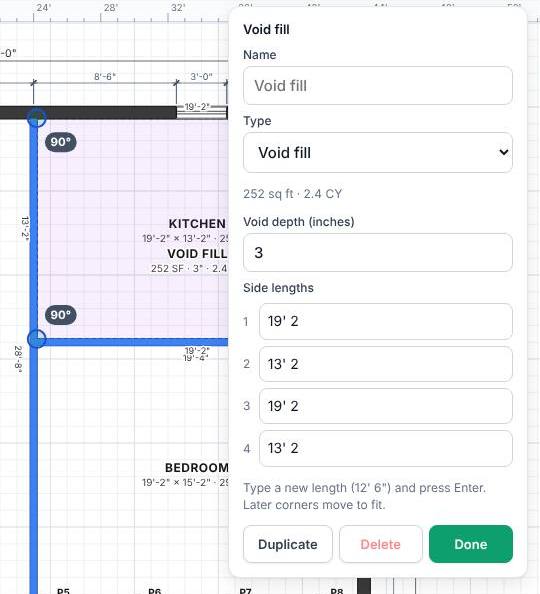
Cubic yards are rounded up to the next tenth. Foam is shown in whole cubic feet. For foam lift you can also set Injection spacing (ft), and the plan shows the injection points on that grid.
You can also change a zone's Name and Type, and type exact Side lengths.
Count everything with Takeoff
- Tap Takeoff at the bottom right.
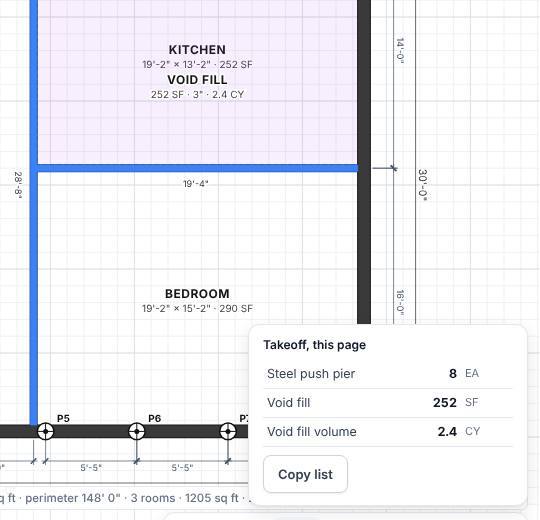
- Takeoff, this page lists what's drawn: piers by type and other items as EA, drains and lines as LF, zones as SF, and zone volumes as CY or CF. A Concrete zone is listed by its volume only (Concrete volume, in CY).
- Tap Copy list to copy it, then paste it into a spreadsheet or email.
Was this article helpful?
Thanks for letting us know.
Still need help?
Send us a message and a real person on the Terralox team will get back to you, usually the same business day.