
 TerraPlan
Type exact lengths with the number pad
Enter feet, inches and fractions on the number pad, pick which end of the wall moves, or type a length and direction on the drawing bar.
Every length in TerraPlan can be typed. The number pad opens after you draw a wall, and any time you tap a length label on a selected wall.
Type a length on the pad
- Draw a wall, or select a wall and tap one of its blue length labels.
- The pad shows two boxes: ft and in. The highlighted box is the one you're typing in. Typing replaces what's there.
- Type the feet. Tap the →| key (or tap the in box) to move to inches.
- Type the inches. For a fraction, use / and the space key: 6, space, 1, /, 2 gives 6 1/2 inches.
- Tap ✓ to set it. Tap ✕ to close the pad without changing anything.
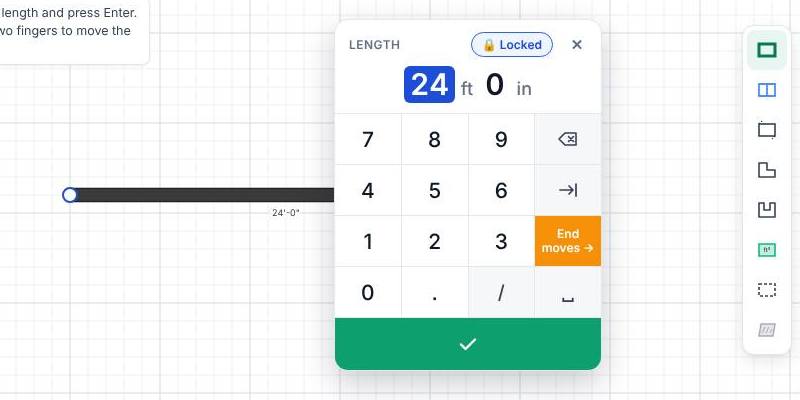
Which end moves
On a wall that isn't a closed outline, the orange key picks the end that moves:
- End moves → (the default) keeps the start where it is and moves the far end.
- ← Start moves keeps the far end and moves the start.
Walls joined at the end that moves come along. A wall that carries on in the same line stretches. A wall that turns off it (the side of a room) slides over whole, so the room stays square.
On a closed outline there's no choice to make: the house stretches, and every corner past the side you changed moves with it.
Type a length on the drawing bar
While a wall tool is on, the bar at the bottom has a Length box, an Angle box and four arrows.

- Tap empty space to put down a start dot, or finish a wall so the next one starts at its end.
- Type a length in Length, like 12' 6", 12-6 or 12.5.
- Tap an arrow (↑ ← → ↓) to draw the next wall that way. From a start dot, pressing Enter draws it to the right.
- For a wall that isn't square, type degrees in Angle (0 is right, 90 is up, 45 is up and to the right) and press Enter.
To fix the wall you just drew, type its real length in Length and press Enter (with Angle empty). The wall changes to that length instead of a new wall being drawn.
Thanks for letting us know.
Still need help?
Send us a message and a real person on the Terralox team will get back to you, usually the same business day.