
 TerraPlan
Draw walls
Press, drag and let go for each wall, watch the guides that keep lines straight, and close the outline.
Walls are drawn one line at a time, the way you walk the house with a tape. Each line you draw joins the one before it at the corner, and the last one can close the outline.
Steps
- Tap Walls in the tool rail, then Walls in the list. (It's already picked when TerraPlan opens.) For inside walls pick Interior instead. Interior walls draw in blue.
- Press where the first corner goes, drag along the wall and let go where it ends.
- The number pad opens with the length you drew. Type the real length and tap ✓, or tap ✕ and keep drawing. See Type exact lengths.
- Press on the end of the last wall and drag the next one. It snaps to the corner and joins the run.
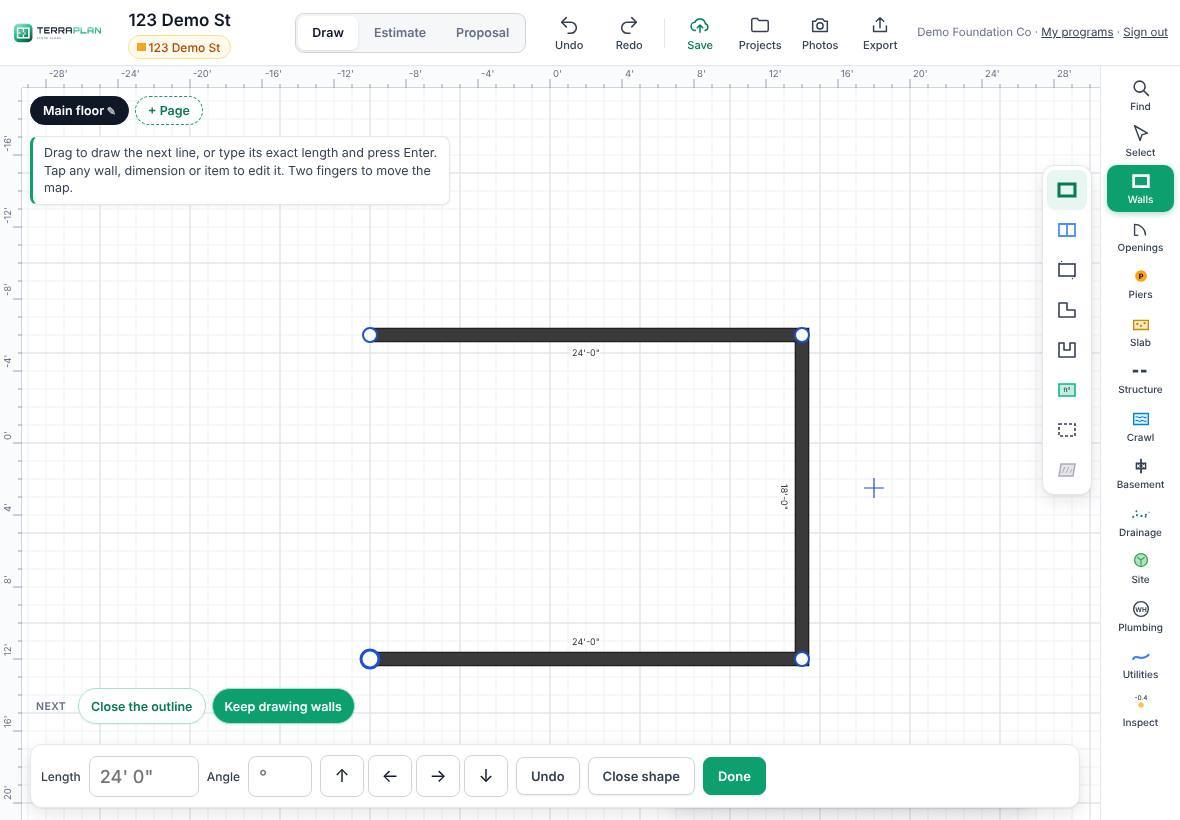
- To close the outline, drag the last wall back into the first corner. You can also tap Close shape on the bar at the bottom, or Close the outline under Next.
- Tap Done when you're finished with the run.
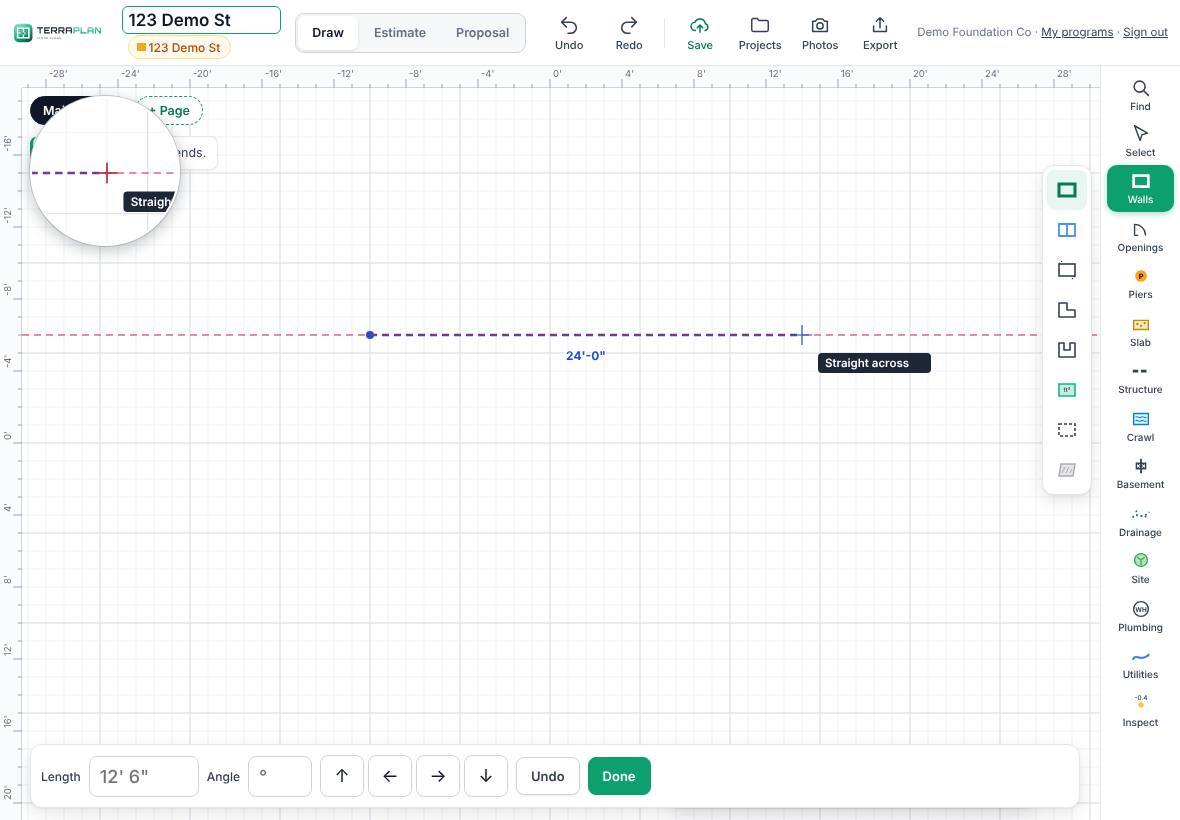
The guides while you drag
- A dashed line through the start point means the wall is locked to a direction. Red runs straight across, green straight up and down. The label says Straight across, Straight up/down, 45°, Parallel to wall or Square to wall.
- TerraPlan locks a hand-drawn line that's within about 8 degrees of straight. Lengths round to the nearest inch.
- Other labels tell you what the end snapped to: Corner, Middle, Lined up with corner, Meets wall or Same length. An interior wall drawn to the foundation outline shows Inside face: it ends on the inside of the foundation wall.
- On a phone or iPad a round magnifier shows a close-up of what's under your finger.
Related questions
How do I change a corner I just drew?
The last run shows white dots at its corners. Hold your finger still on a dot for a moment, then drag to move that corner. If you start dragging right away, you draw a new wall from that corner instead.
How do I take back the last wall?
Tap Undo on the bottom bar or in the top bar. Each tap removes one step.
Can I turn off the number pad after each wall?
Yes. Tap Layers and untick Number pad after each wall.
Was this article helpful?
Thanks for letting us know.
Still need help?
Send us a message and a real person on the Terralox team will get back to you, usually the same business day.