
 TerraPlan
Select, move and edit walls
Pick up a wall or anything else on the plan, drag it, move its corners, and change its type, thickness and lengths in the Edit panel.
Anything on the plan can be picked up and changed: walls, doors, piers, zones, notes. You don't have to switch tools first. A tap on an item picks it up even while a drawing tool is on.
Select and move
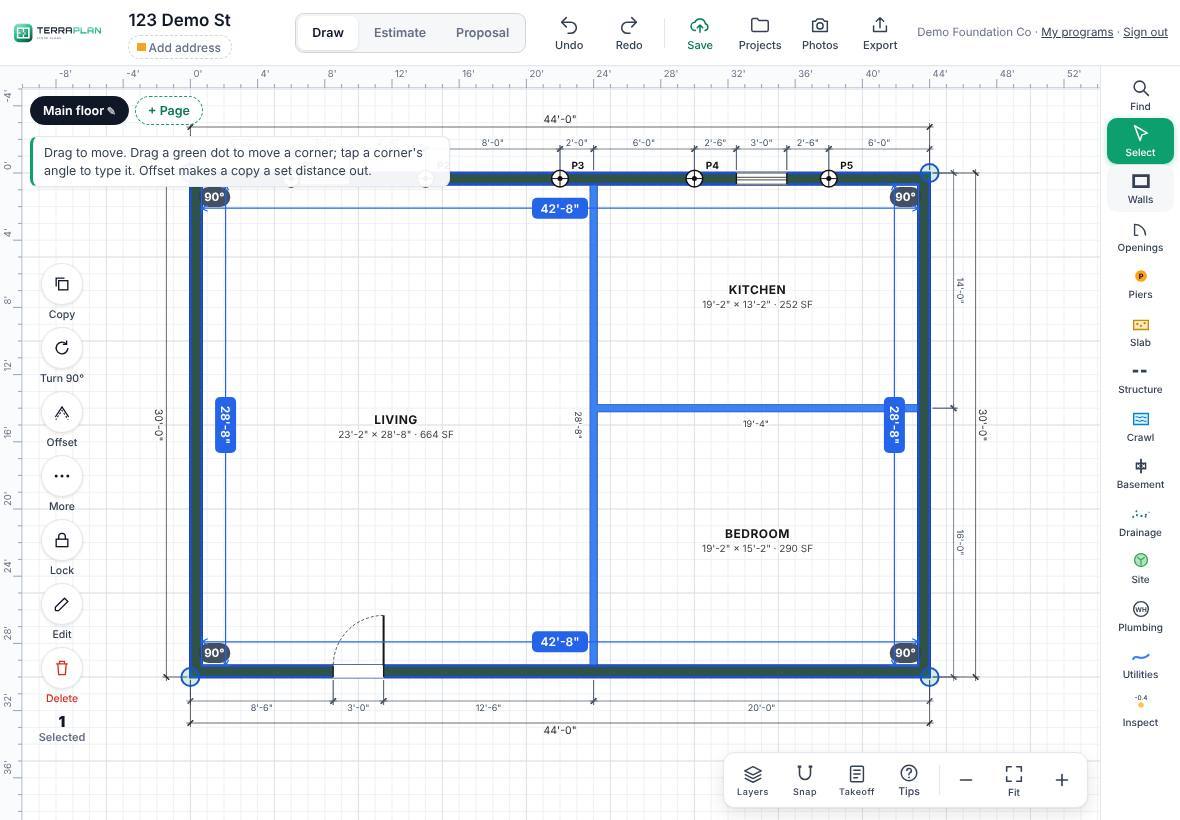
- Tap Select in the tool rail, or just tap the item you want.
- The item turns blue and the selection column appears down the left side.
- Drag the item to move it. A wall end that comes near another wall shows a dashed line and Joins the wall when you let go.
- After a move, an orange label shows how far it went. Tap it to type an exact distance.
- To move one corner, drag its green dot.
- Tap empty space when you're done.
The selection column
- Copy puts a copy beside the item. A single straight wall lands 3 ft to the side with its distance showing so you can type it.
- Turn 90° turns the item a quarter turn.
- Offset makes a copy a set distance away. See T-walls and offsets.
- More opens rotate by angle, flips, mirrored copy, extend, Curve it and group.
- Lock stops the item from being moved by accident.
- Edit opens the details panel on the right. Hide panel closes it.
- Delete removes it. Undo brings it back.
The Edit panel for a wall
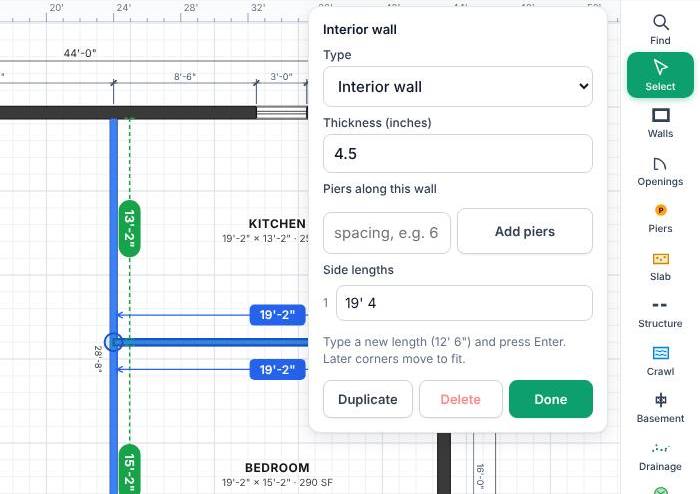
- Type: Exterior / foundation wall or Interior wall.
- Thickness (inches): 8 for exterior walls and 4.5 for interior walls to start.
- Closed outline: for an exterior wall run. When it's on, the walls grow inward from the line you drew.
- Piers along this wall: type a spacing and tap Add piers.
- Side lengths: type a new length for any side and press Enter. Later corners move to fit.
- Duplicate, Delete and Done.
Select several things
Drag across empty space with Select on. Start on bare paper: a press inside a labeled room picks up the room, and a press on a dimension label moves the view. Dragging left to right takes what's fully inside the box. Dragging right to left takes anything the box touches. Drag any one of them to move them all.
With several things selected, tap Edit on the selection column to open the panel for the whole selection. It lists what's selected and has Duplicate, Delete and Done. When every item is a pier, Change pier type switches them all at once and keeps their numbers.
Thanks for letting us know.
Still need help?
Send us a message and a real person on the Terralox team will get back to you, usually the same business day.