
 TerraPlan
Lock a dimension, an item or a layer
Keep measured lengths, finished walls and whole layers from changing by accident.
TerraPlan has three kinds of lock. Use them once something is measured and right, so a stray drag doesn't undo your work.
| Lock | What it stops | Where |
|---|---|---|
| Dimension 🔒 | A typed length changing when you drag a corner next to it | The number pad |
| Item | The item moving, turning or changing shape | Lock on the selection column |
| Layer | Everything on that layer being picked or moved | Layers at the bottom |
Lock a dimension
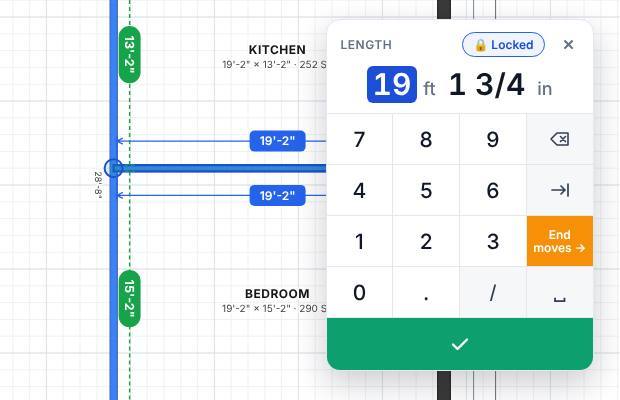
A length you type is locked by default. The pad shows 🔒 Locked at the top, and after you tap ✓ the length label shows a 🔒.
When you drag a corner next to a locked length, the corner swings around the far end so that length stays the same. If both lengths at a corner are locked, the corner doesn't move.
To unlock a length:
- Select the wall and tap the length with the 🔒.
- Tap 🔒 Locked so it reads 🔓 Unlocked.
- Tap ✓.
Lock an item
- Select the item.
- Tap Lock on the selection column. TerraPlan says "Locked: it can't be moved by accident."
- To change it again, select it and tap Unlock.
A locked item can still be copied.
Lock a layer
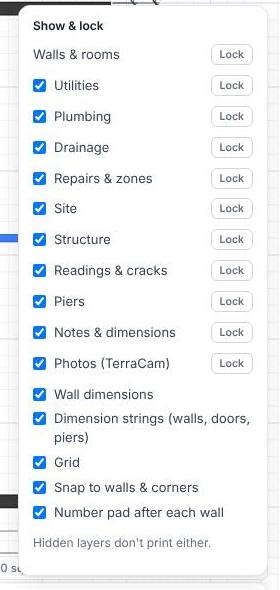
- Tap Layers at the bottom right.
- Tap Lock next to the layer. Walls & rooms is the first one, so you can lock the walls while you place piers, readings and zones.
- Tap Locked to unlock it.
Items on a locked layer can't be tapped, box-selected or trimmed.
Related questions
I tap a wall and nothing happens.
Its layer is probably locked. Open Layers and look for Locked next to Walls & rooms.
A message says "Locked. Tap Unlock on the bar to move it."
That item is locked. Tap Unlock on the selection column on the left.
Thanks for letting us know.
Still need help?
Send us a message and a real person on the Terralox team will get back to you, usually the same business day.