
 TerraPlan
Start a new plan
TerraPlan opens on your projects. Start a new project at the job address, save it, and find and open it again later.
Each plan is one drawing for one job. It can have several pages (main floor, crawl space, site plan) and it carries its own estimate and proposal. Plans are filed in address folders that every Terralox program shares.
What you see when you open TerraPlan
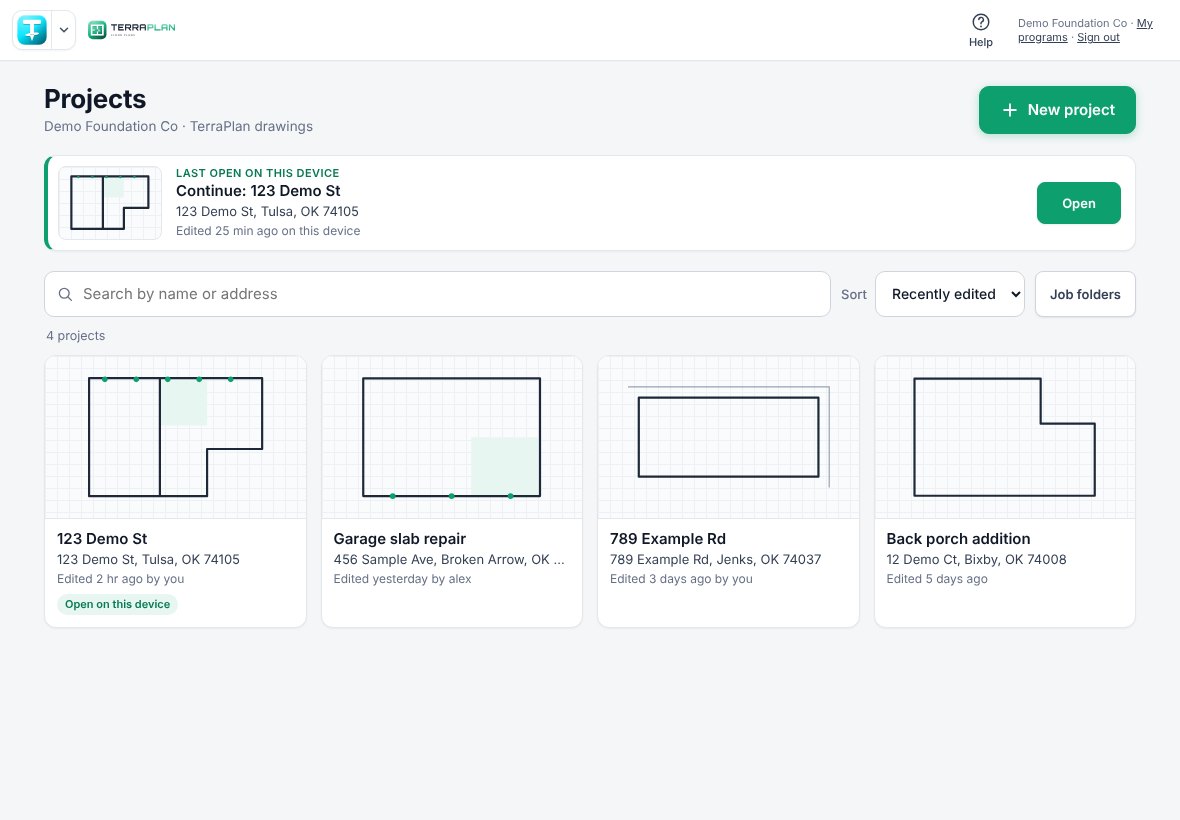
TerraPlan opens on the Projects screen: your company's TerraPlan drawings, newest first. Each card shows a small picture of the drawing, the project name, the address, and when it was last edited and by whom.
- Search: type part of a name, an address or the homeowner. The list narrows as you type.
- Sort: Recently edited, Name or Address.
- Job folders: every drawing, photo job and survey, filed by address.
- Continue (at the top): the drawing you had open last on this device. Tap Open to pick up where you left off.
Start a new project
- On the Projects screen, tap + New project. (With a drawing open, you can also tap Export, then New project….)
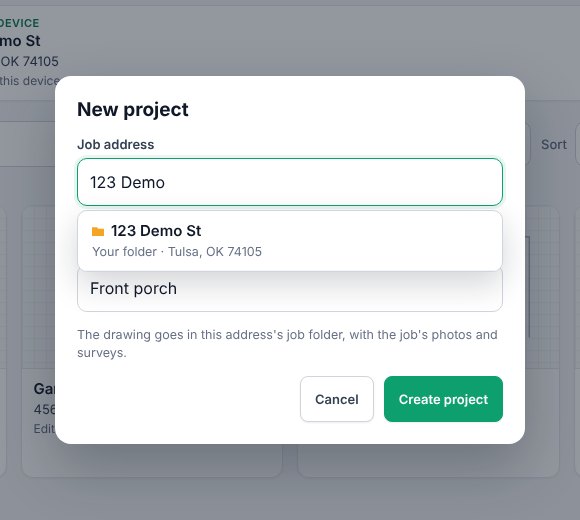
- Type the job address and pick it from the list when it shows. The drawing goes in that address's job folder, with the job's photos and surveys.
- Type a project name if you want one, such as "Front porch". Leave it blank to use the address.
- Tap Create project. A blank canvas opens for it. Start with the outside walls. See Draw walls.
- Tap Save in the top bar. The plan goes to your company account and its folder.
The plan name and its folder stay at the top while you draw. Tap the name to change it. Tap the address chip under it to move the plan to another address folder; Folder › opens that job's folder.

Open a plan you saved
- Tap Projects in the top bar to go back to the list. If the drawing you had open has changes, TerraPlan saves them to your account first. The browser's Back button does the same.
- Find the plan (search or sort) and tap its card. It opens in the drawing screen.
- Reloading the page reopens the plan you're in. A link from TerraCam, TerraScan or Jobs opens that plan straight away.
Drawings not saved to your account yet
A drawing that is only on this device shows at the top of the Projects screen as Not saved to your account yet. Tap Open to keep working on it, or Save to put it in your account. A drawing saved with no signal shows as Waiting to upload and goes up by itself when the signal comes back.
Related questions
TerraPlan used to open my last drawing. Where is it?
At the top of the Projects screen, as Continue. Tap Open.
I saved, but my coworker can't find the plan.
Have them search for its name or address on the Projects screen. If the plan name doesn't look like an address and no address was added, it's filed by its name. Open the plan, tap Add address, pick the address, and tap Save again.
Can I start a plan from a TerraScan property?
Yes. Opening TerraPlan from a property starts a plan with that property's address. The drawing you had open before stays on the Projects screen.
Thanks for letting us know.
Still need help?
Send us a message and a real person on the Terralox team will get back to you, usually the same business day.