
 TerraScan
Run a site visit and drop pins
Start or resume a site visit, drop pins on the map for piers, cracks and drainage, add photos, complete the visit, and open earlier visits.
A site visit is one trip to the house. During the visit you drop pins on the map where you find something: a pier, a crack, a drainage problem or anything else. Each pin can hold depth, severity, notes and photos, and they all go into the visit report.
Steps
- Open the property from Properties.
- In the Site Visit panel, click Start Site Visit. If a visit is already in progress on this property, the panel opens it for you instead, with its pins, so you carry on where you left off.
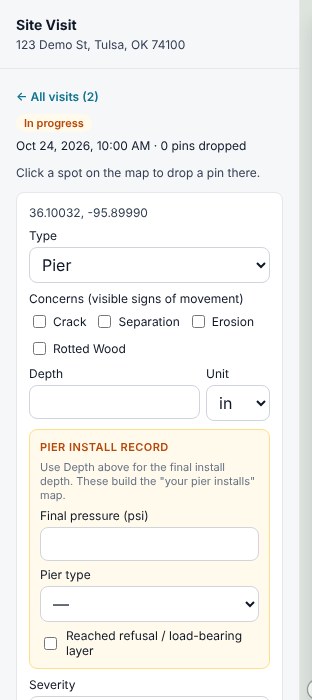
- Click the spot on the map where you found something. A pin form opens in the panel.
- Choose the Type: Pier, Crack, Drainage or Other.
- Tick any Concerns (visible signs of movement): Crack, Separation, Erosion or Rotted Wood.
- Fill in what you know:
- Depth and Unit (in or ft).
- Severity, for example minor, moderate or severe.
- Notes.
- Click Save Pin. Click Cancel to throw the pin away.
- Repeat for each spot. The line at the top shows the visit's status (In progress or Finished), when it started and how many pins you've dropped.
Pier install details
When the type is Pier, a Pier install record box appears. Use Depth for the final install depth, then fill in Final pressure (psi), Pier type (Steel push, Helical, Sleeve lock, Concrete or Other) and tick Reached refusal / load-bearing layer if it did. These pins build the Your pier installs layer on the Map screen.
Add photos to a pin
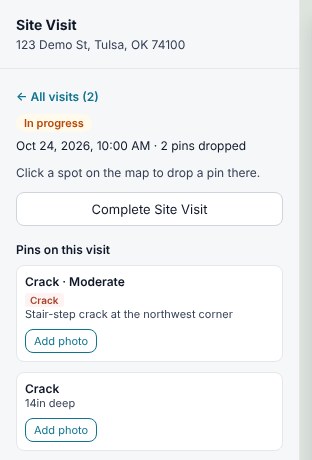
Each saved pin is listed under Pins on this visit. Click Add photo on a pin to attach photos from your device. Photos can only be added while the visit is still in progress.
Move a pin
While the visit is in progress, drag a pin on the map to a new spot. Click a pin to see its details.
Finish the visit
Click Complete Site Visit when you're done. The status changes to Finished. Then make the report (see Download TerraScan reports).
Come back to a visit
Your visit is saved as you go. You can leave the property page, reload, or use Measure, Draw Boundary or a site plan on a phone in the middle of a visit. When you come back, the Site Visit panel opens your visit that's in progress, with all its pins. A visit a teammate started is never opened for you: it's in the list, marked Started by and their name.
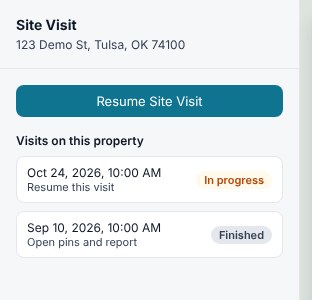
To see every visit on the property, click ← All visits at the top of the panel. The list shows each visit's date and status:
- Click an In progress visit, or Resume Site Visit, to carry on with it.
- Click a Finished visit to see its pins and its report.
Start Site Visit only shows when you have no visit in progress on the property. Owners and managers see every visit on the property; everyone else sees the visits they started.
Related questions
On a phone, where is the Site Visit panel?
Tap Site Visit along the bottom of the map. Tapping the map also opens it with a new pin form. Closing the panel, or using another tool, doesn't end the visit.
Where is a visit from last week?
Open the property, then click ← All visits in the Site Visit panel. See Find an earlier site visit.
Thanks for letting us know.
Still need help?
Send us a message and a real person on the Terralox team will get back to you, usually the same business day.