
 TerraScan
Download TerraScan reports
Make the site visit report for a completed visit, or download the property report with the ground conditions.
TerraScan makes two PDF reports:
| Report | What's in it | Where |
|---|---|---|
| Site visit report | Your company name, the property, the site conditions (soil and geology), and every pin from the visit with its type, severity, concerns, depth, notes and photos. | Site Visit panel, after the visit is completed |
| Property PDF | The property, its map, soil and geology, the hazard and environmental conditions (flood, wetlands, groundwater, earthquakes, drought, storm damage, tree canopy, wells, surface water) and the parcel and owner details. | Download Property PDF in the top bar |
Make the site visit report
- Finish the visit with Complete Site Visit (see Run a site visit and drop pins).
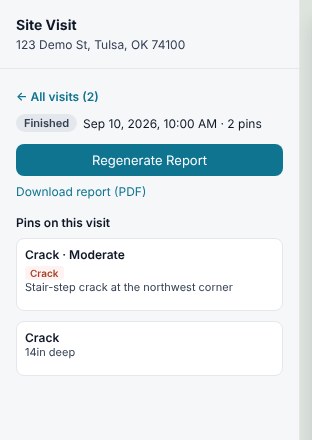
- Click Generate Report. It says Generating report... while it works.
- Click Download report (PDF). The report opens in a new tab, where you can save or print it.
- If you change something and want a fresh copy, click Regenerate Report.
To get the report for an older visit, open the property, click ← All visits in the Site Visit panel, and click the Finished visit. Its report is there.
Download the property PDF
- Open the property.
- Click Download Property PDF in the top bar. It says Preparing PDF… while it works.
- The PDF downloads to your device, named after the address.
You don't need a site visit for the property PDF. It's handy before the first appointment.
Related questions
Can I send the report straight to the homeowner?
TerraScan gives you the PDF. Email or print it from your device.
Was this article helpful?
Thanks for letting us know.
Still need help?
Send us a message and a real person on the Terralox team will get back to you, usually the same business day.