
 TerraScan
Add a property in TerraScan
Add a house by address, set the foundation type, and link it to a job you already started in another program.
Every TerraScan job starts with a property. Add the address once and TerraScan places it on the map and gathers the ground data for it.
Steps
- Click Properties in the left menu.
- Click + Add Property.
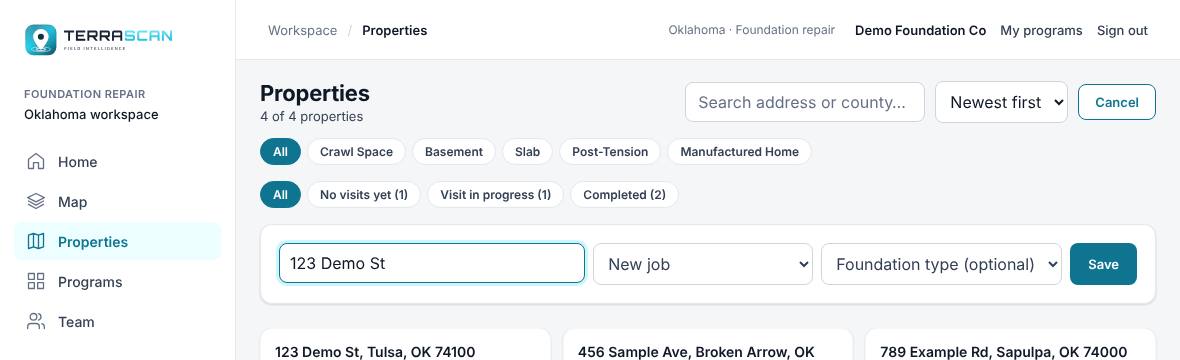
- Start typing the address in Property address. Pick the right address from the list that drops down. That saves the property straight away.
- If you'd rather type the full address yourself, type it and click Save.
- (Optional) Before saving, pick the Foundation type: Crawl Space, Basement, Slab, Post-Tension or Manufactured Home. Diagnose uses it.
- (Optional) If the job was already started in TerraPlan or TerraCam, pick it in the menu that says New job. The property joins that job, so the soil data shows there too.
- TerraScan opens the new property's workspace.
Find a property later
The Properties screen lists every property as a card with its address, county, foundation type and the date its ground data was captured.
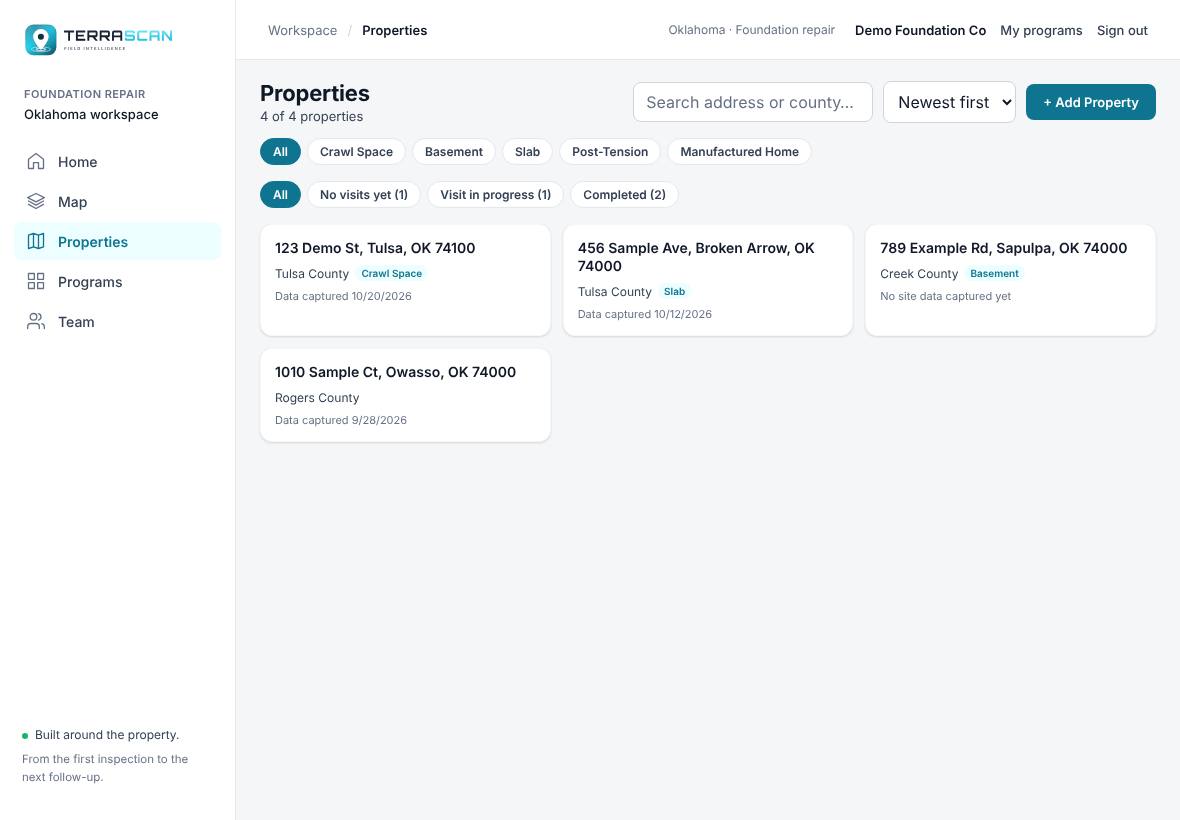
- Search address or county… filters as you type.
- The first row of buttons filters by foundation type.
- The second row filters by visit status: No visits yet, Visit in progress or Completed, with a count on each.
- The menu next to the search box sorts by Newest first, Oldest first, Name (A–Z) or County.
Add a property from the map
You can also click Map in the left menu, search an address, town or ZIP, click a spot and press Add as property.
Related questions
I picked a job and it opened a different property
That job already has a TerraScan property, so TerraScan opens the existing one instead of making a second copy.
Was this article helpful?
Thanks for letting us know.
Still need help?
Send us a message and a real person on the Terralox team will get back to you, usually the same business day.