
 TerraCam
 overview
What TerraCam is for, and a tour of the jobs list and the Plan, Photos and Report tabs.
TerraCam is the job camera. Every photo you take is pinned to the spot on the house plan where you stood, so anyone in the office can see exactly where a crack or a pier is. You can then caption the photos, mark them up and turn them into a PDF photo report for the homeowner.
TerraCam works on a phone, an iPad or a laptop. Open it from your programs page or go to /terracam/app.
The jobs list
When TerraCam opens you see your company's jobs as address folders: one folder per house, the same folders as every other Terralox program and the Jobs page. The Terralox button at the far top left goes to the terralox.com home page; tap the small arrow next to it for My account, Jobs, your other programs, the Help Center and Sign out.
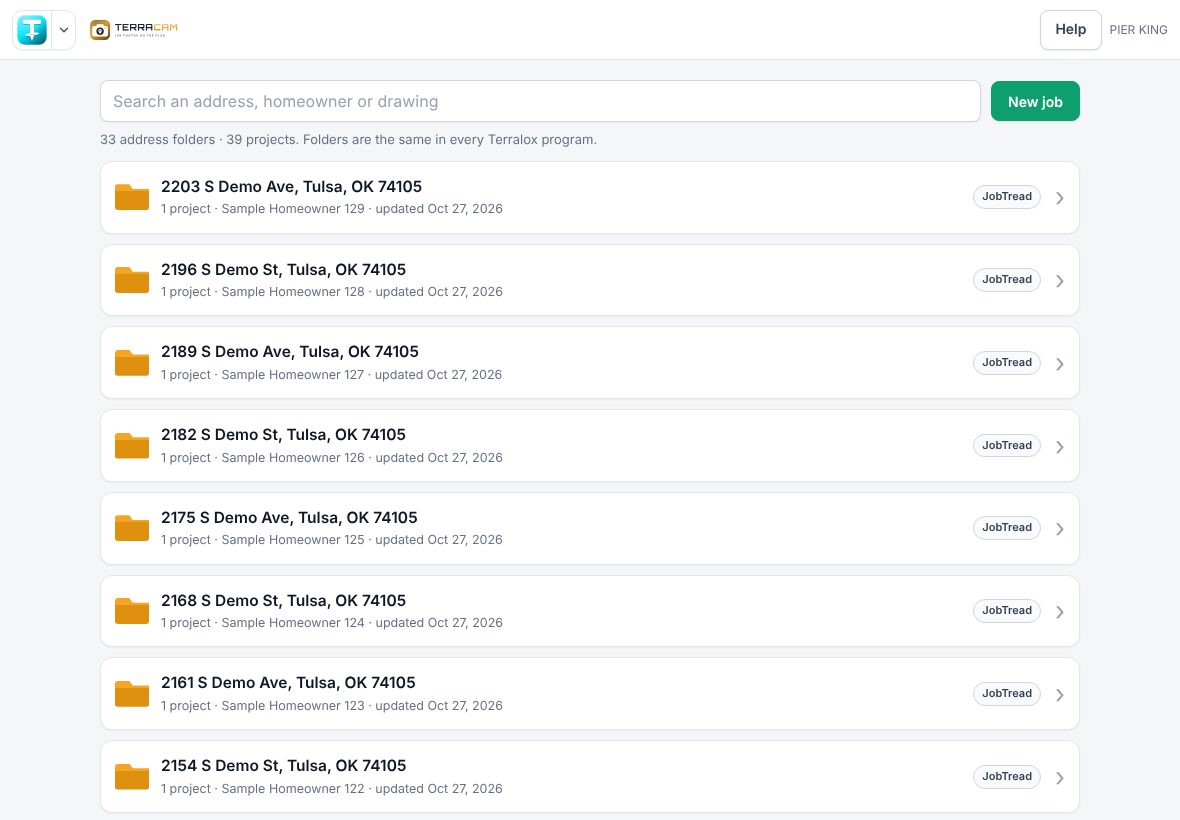
- Each folder card shows the address, how many projects it holds, the customer, when it last changed and which programs have work there.
- Search finds an address, a customer's name, a JobTread job number (like 25142) or a JobTread status (like Estimating).
- New job asks for the address first, then opens a new photo job filed in that house's folder.
- Tap a folder to open it. Inside, JobTread jobs show as #job number and customer, with the status and job type from JobTread.
- Take photos inside a folder opens that house's photo job. If there isn't one yet, the photos join the house's newest JobTread job, so they stay with it.
- Needs an address at the bottom holds jobs with no house number (for example a JobTread job with only "Tulsa, OK"). Fix the address in JobTread and the job files itself, or tap File it.
- On this device, not in your account yet appears under the folders only when you have a photo job that hasn't uploaded (no signal, or signed out). It goes away once it uploads.
Inside a job
Tap a job card to open it. The top bar shows ‹ Jobs (back to the list), the job name and a ⋯ menu with Rename job, Add a plan sheet (PDF or picture), Open this plan in TerraPlan and Delete job. If your company has TerraScan, you may also see Pull soil data from TerraScan.
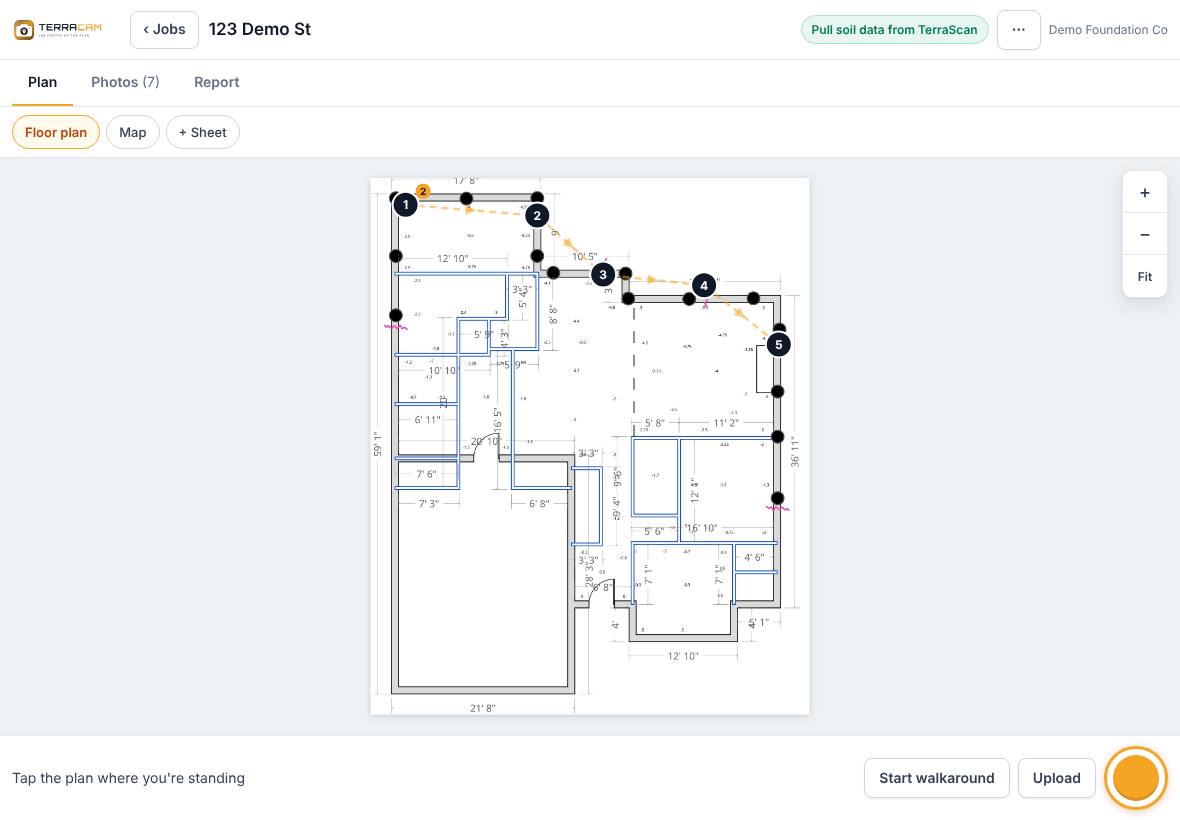
A job has three tabs:
| Tab | What it's for |
|---|---|
| Plan | The plan sheet (or satellite Map) with numbered photo spots. The bar at the bottom has Start walkaround, Upload and the round camera button. |
| Photos | Every photo in the job, with filters, grouping and Select for changing many photos at once. |
| Report | Settings for the PDF photo report and the Download PDF button. |
The row of sheet buttons under the tabs switches between plan sheets. Map shows the satellite view and + Sheet adds another PDF or picture.
Related questions
Who can see my TerraCam jobs?
Everyone signed in to your company's Terralox account can see the company's jobs and photos.
Can I use TerraCam without a plan?
Yes. Photos still save to the job. They just don't have a spot until you add a plan or mark spots on the map.
Thanks for letting us know.
Still need help?
Send us a message and a real person on the Terralox team will get back to you, usually the same business day.