
 TerraCam
Caption, tag and sort photos
Use the Photos tab and the photo viewer to add captions and tags, mark photos for the customer, and change many photos at once.
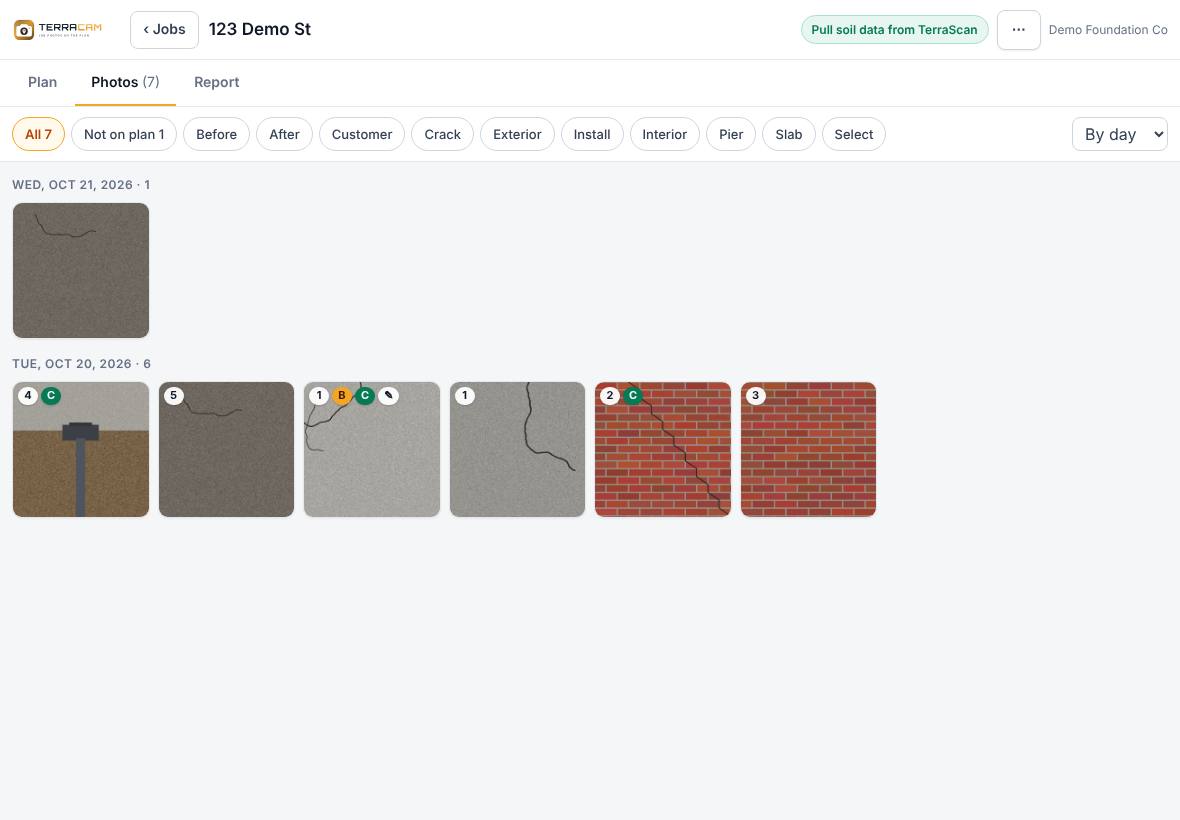
The Photos tab shows every photo in the job. This is where you get photos ready for the report: a short caption, the right tags, and Customer on the ones the homeowner should see.
Find photos
- The buttons across the top filter the grid: All, Not on plan, Before, After, Customer, and one button for each tag used in the job.
- The menu on the right groups the grid By day, By spot or By tag.
- The small badges on each photo show its spot number, B or A for before/after, C for Customer, and a pencil if it has drawings. on device means it hasn't uploaded yet.
Edit one photo
- Tap a photo to open it.
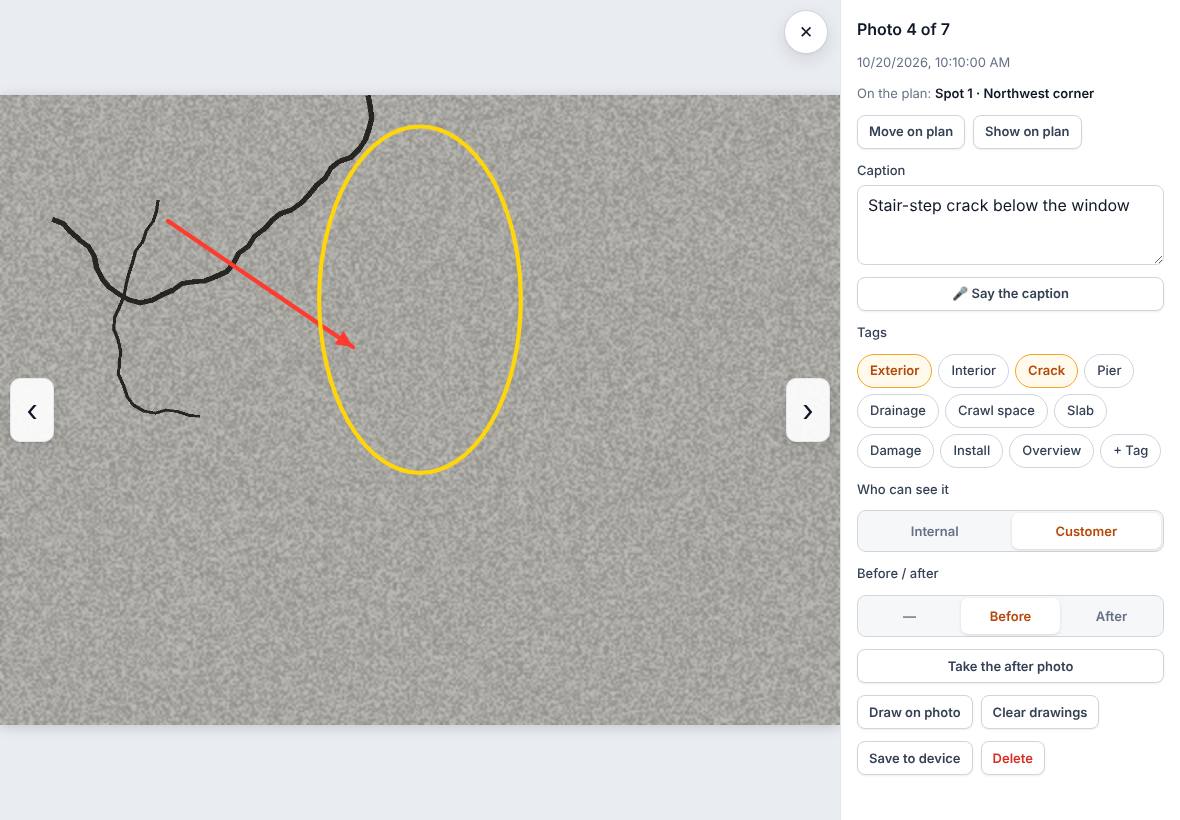
- Type in Caption ("What does this show?"). It saves when you leave the box. On some devices 🎤 Say the caption lets you speak it.
- Tap tags to turn them on or off. + Tag adds your own tag to the job.
- Under Who can see it, choose Internal or Customer. New photos start as Internal.
- Under Before / after, choose —, Before or After.
- Use the arrows (or swipe) to go to the next photo. Tap ✕ to close.
Other buttons in the viewer:
- Place on plan / Move on plan: tap the plan to set or change the photo's spot.
- Show on plan: jumps to the photo's spot.
- Save to device: downloads the photo, with any drawings on it.
- Delete: removes the photo from the job.
Change many photos at once
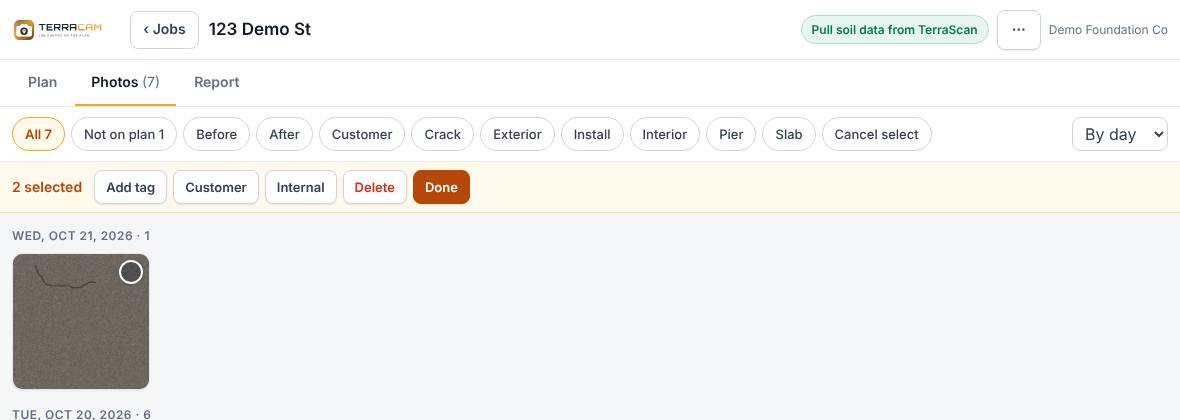
- On the Photos tab, tap Select.
- Tap the photos you want. The bar shows how many are selected.
- Press Add tag, Customer, Internal or Delete.
- Press Done.
Related questions
Can I undo a delete?
No. A deleted photo is removed from the job and from your company's account.
Was this article helpful?
Thanks for letting us know.
Still need help?
Send us a message and a real person on the Terralox team will get back to you, usually the same business day.