
 TerraCam
Draw on a photo
Add arrows, circles, freehand lines and text to a photo to point out cracks and repairs.
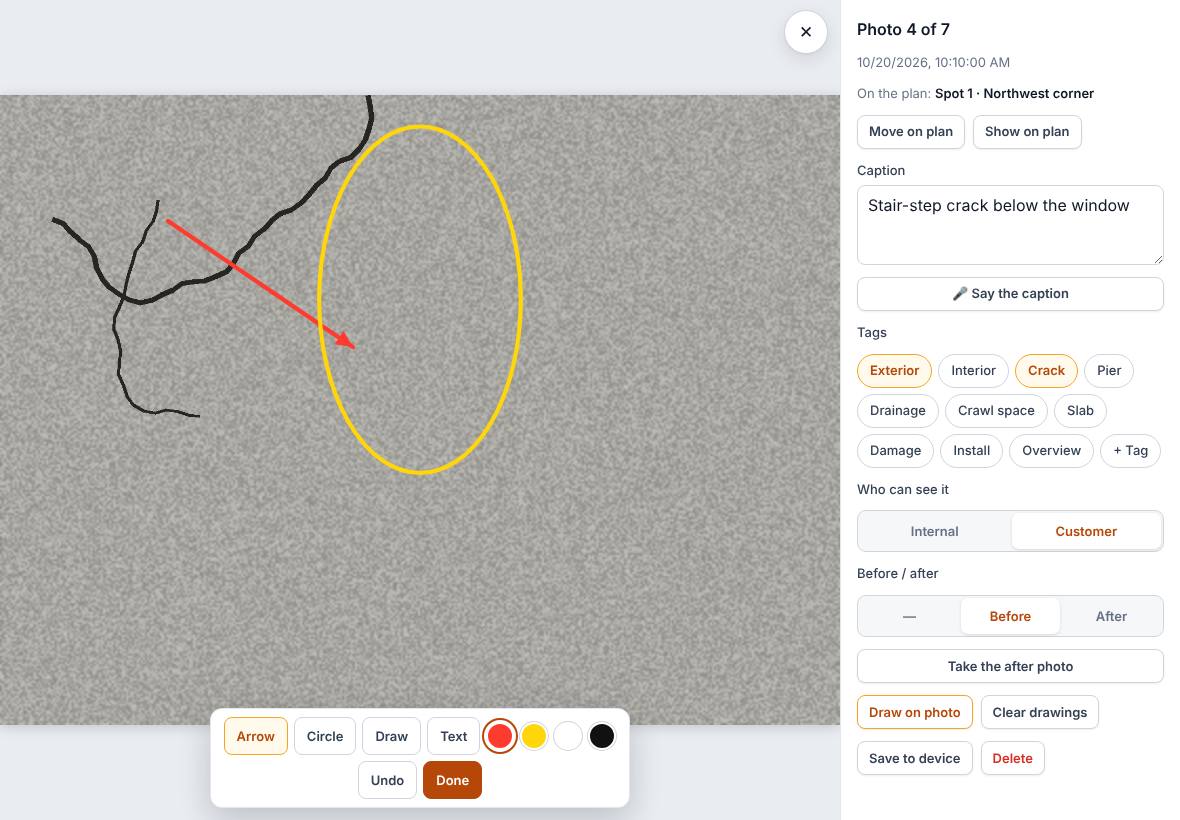
Mark up a photo to show the homeowner exactly what you mean: an arrow at the crack, a circle around the settled corner, or a short note. The drawings sit on top of the photo, so the original photo is never changed.
Steps
- Open the job, go to Photos and tap the photo.
- Press Draw on photo. The drawing tools appear under the photo.
- Pick a tool: Arrow, Circle, Draw (freehand) or Text.
- Pick a color: red, yellow, white or black.
- Drag on the photo to draw. For Text, tap where the words should go and type them.
- Press Undo to take back the last mark.
- Press Done when you're finished. Drawings save straight away.
Remove drawings
Press Clear drawings in the viewer and confirm. Every drawing on that photo is removed and the photo stays.
Drawings in reports and downloads
- The photo report includes drawings when Include drawings on the photos is ticked (it is by default).
- Save to device downloads the photo with the drawings on it.
Related questions
Why can't I swipe to the next photo while drawing?
Swiping is turned off while the drawing tools are open so your marks don't change the photo. Press Done first.
Was this article helpful?
Thanks for letting us know.
Still need help?
Send us a message and a real person on the Terralox team will get back to you, usually the same business day.