
 Jobs and crew
Inside a job folder: status, notes and house details
Set a job's status, leave notes for the crew, and keep owners, visits, warranty and house details with the address.
Each job folder is the page for one house. Everything you add here stays with the address, so the next visit, or the next owner's call, has the full story.
Set the job's status
- Open the folder from Jobs.
- Use the status box at the top right: New lead, Inspection, Estimate sent, Sold, Scheduled, In progress, Complete, Warranty work or No sale.
- It saves right away. The status shows on the folder's row in the Jobs list.
Add a note
- Press Add a note (or open the Notes tab).
- Type what you saw: gate code, the dog, cracks, what the homeowner said.
- Tick Pin to the top for anything the next person must see first.
- Press Save note.
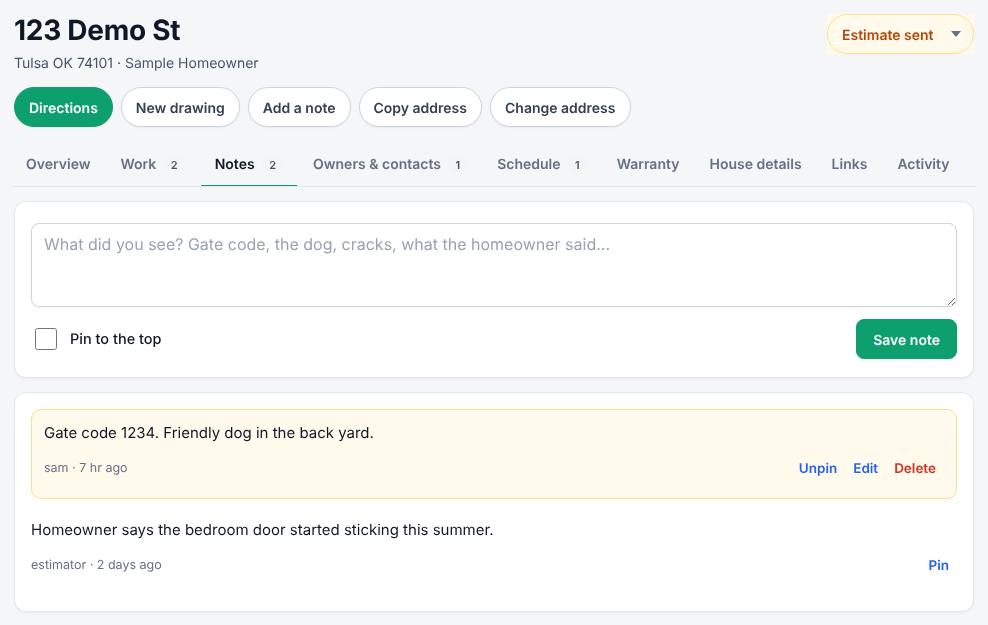
Pinned notes also show on the Overview tab. Anyone on the team can Pin or Unpin a note. You can Edit and Delete your own notes.
Who can change what
- Notes, contacts, visits and to-dos, and links can be changed or removed by whoever added them, or by an owner or manager. The buttons only show on the ones you can change.
- Anyone on the team can tick a visit or to-do done (or not done). Changing what it is or when takes whoever scheduled it, or a manager.
- Each crew PIN login counts as its own person. One crew login can't change or delete another crew login's notes, even though both show your company's name.
- Only owners and managers can change the folder's address or the warranty.
The tabs
| Tab | What's in it |
|---|---|
| Overview | Map, owner, latest estimate, next visit, warranty, foundation type and soil, recent work and activity |
| Work | Drawings and estimates, photos, floor surveys and property reports at this house, with buttons to open each one |
| Notes | Team notes about the house |
| Owners & contacts | Owners over the years, plus tenants, realtors, inspectors and other contacts |
| Schedule | Visits and to-dos, with a date and time. Tick one off when it's done |
| Warranty | When the work was finished, years, warranty number, work covered and any transfer |
| House details | Foundation type, year built, square feet, gate or lockbox code, crawl space access, pets, utilities, 811 ticket and more |
| Links | Web links you want to keep with the job (they must start with https://) |
| Activity | Everything that happened at this house, newest first |
Fill in a tab's form and press its button (Add, Save warranty, Save details and so on). A short message at the top confirms it saved.
Related questions
It says "No signal. Nothing was saved"
Changes to a folder need signal. Try again when you're back online. See Work offline and sync.
I can't edit a note I wrote before October 26
Notes a crew PIN login wrote before then don't record which crew login wrote them, so only an owner or manager can change them now. Notes written with an email login are still yours.
Who sees these notes?
Everyone on your company's team who can open Jobs. They're never shown to homeowners or other companies.
The address is wrong
Press Change address at the top of the folder, fix it and press Save. Everything in the folder moves with it.
Thanks for letting us know.
Still need help?
Send us a message and a real person on the Terralox team will get back to you, usually the same business day.